Door opener Dahua DA2
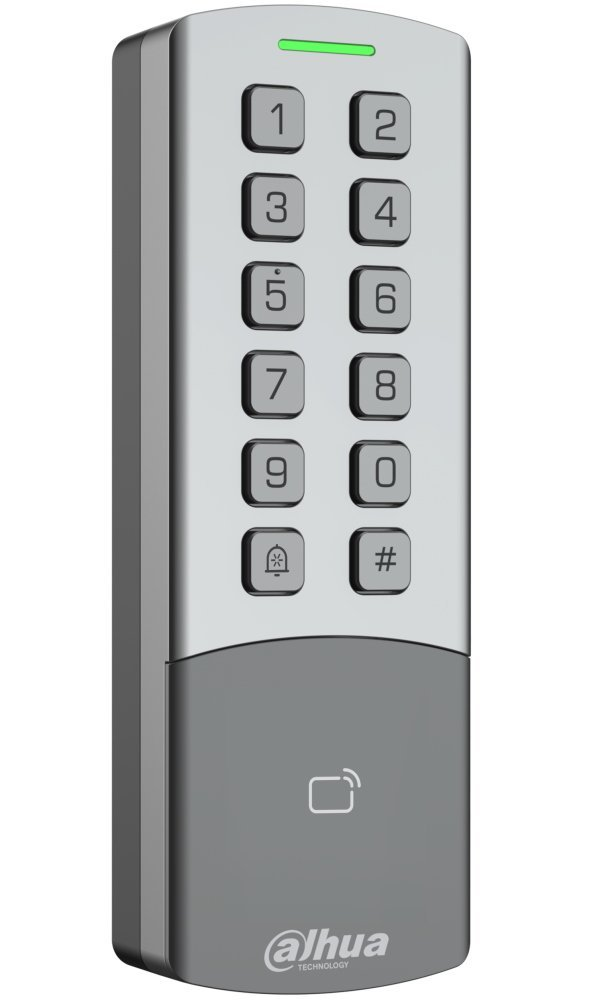
The Dahua DA2 door unlocker is a standalone device from a third-party manufacturer that can be integrated into the Giriton system so that Giriton synchronizes users registered in the HR Module, including their chips, with the Dahua DA2, and so that entries clocked in via the Dahua DA2 are recorded in Giriton as attendance. The Dahua DA2 can also unlock doors when a chip is swiped and offers the option to connect a secondary chip reader, allowing the door to be unlocked from both sides.
User manual available here.
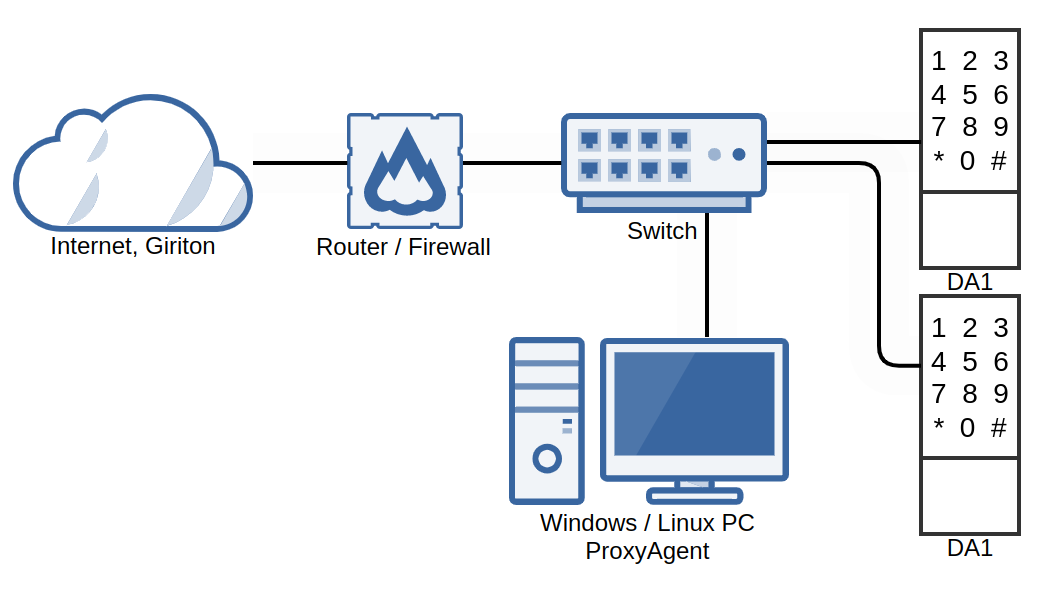
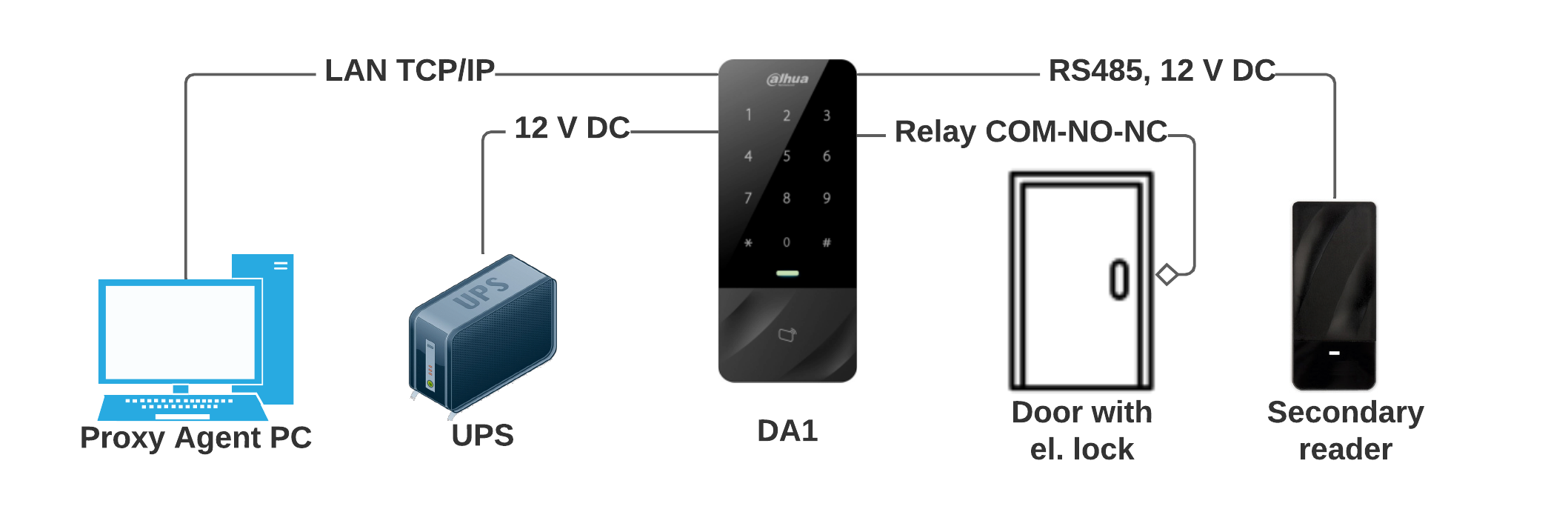
The DA2 door unlocker connects to the LAN network via a standard LAN cable (it offers power through PoE) and must be assigned a static IP address on your internal network. Additionally, the Proxy Agent program must be running on a PC on the network to forward data between the DA2 and your GIRITON cloud account. The Proxy Agent must therefore have access to both the DA2 on the internal network and the internet.
The installation of the Proxy Agent application
On a selected computer connected to the LAN network where the DA2 is also running, install, start, and pair the Proxy Agent program, then leave it running. The running Proxy Agent application will establish a connection between the Dahua DA2 Unlocker and the GIRITON cloud.
Note: The ProxyAgent application can also run in the background as a service. You can install the service by running the "service-install.bat" file in the directory where ProxyAgent is installed.
Setting up the IP Address on the Dahua DA2
Before installing the DA2 unlocker, you must first set up the correct IP address on the DA2. If you provided us with the desired IP address when placing your order, we have already sent you the DA2 with the correct IP address, and the following procedure does not apply to you.
If DA2 is not preset to the correct IP address, you will need to set up the IP address manually in DA2 as follows:
- Download the Dahua Config Tool application.
- Temporarily change your PC’s IP address to 192.168.1.10 (or any IP address in the 192.168.1.x range) and the mask to 255.255.255.0. This is because the DA2’s default IP address is 192.168.1.108, and it communicates only within the 255.255.255.0 mask.
- Connect the DA2 unlocker to the LAN network along with your PC, plug it in, and make sure it is running (a blue light is visible at the top of the DA2).
- On your PC, launch the Config Tool application and do the following:
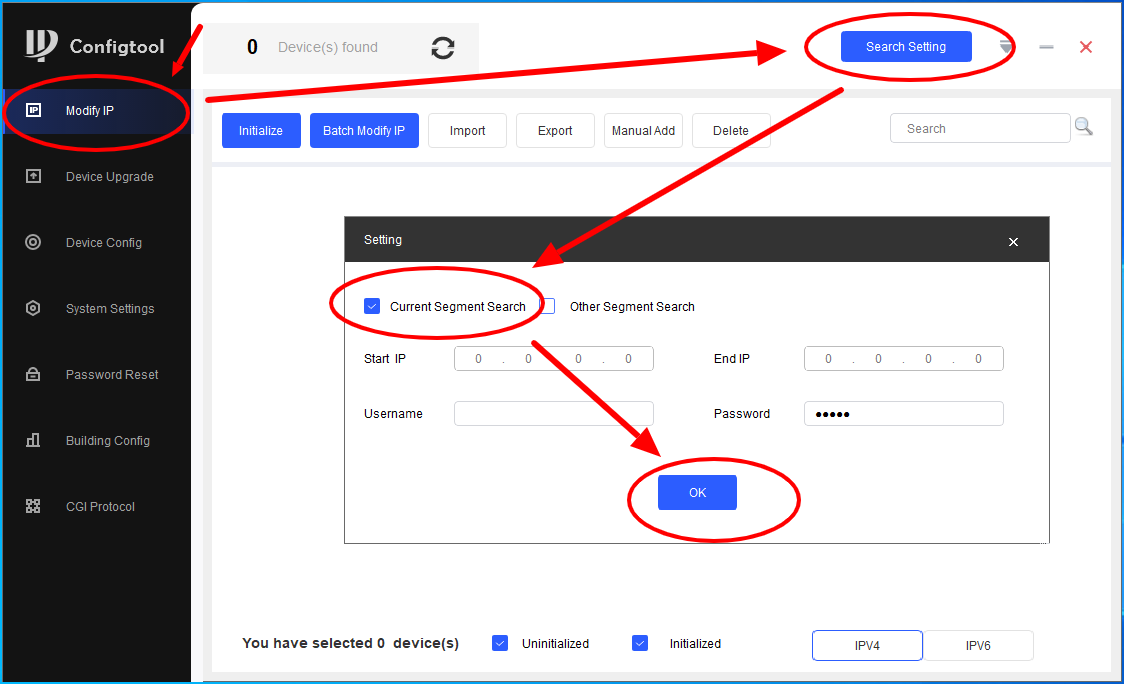
- On the "Modify IP" tab, click "Search Setting," check "Current Segment Search," and click OK.
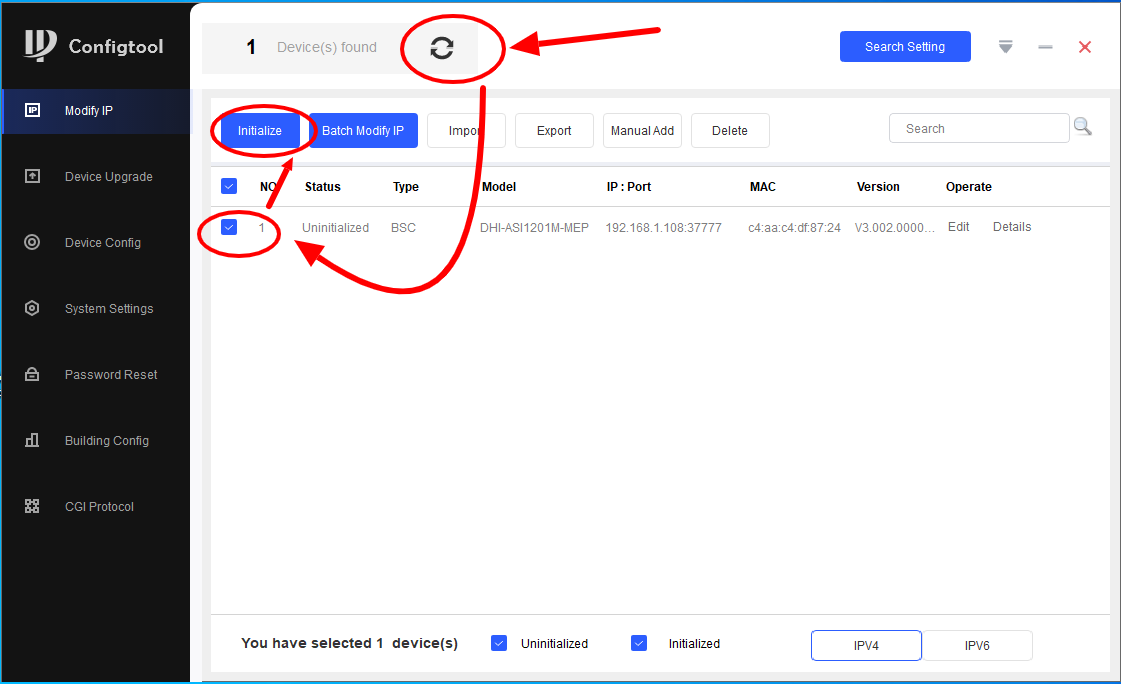
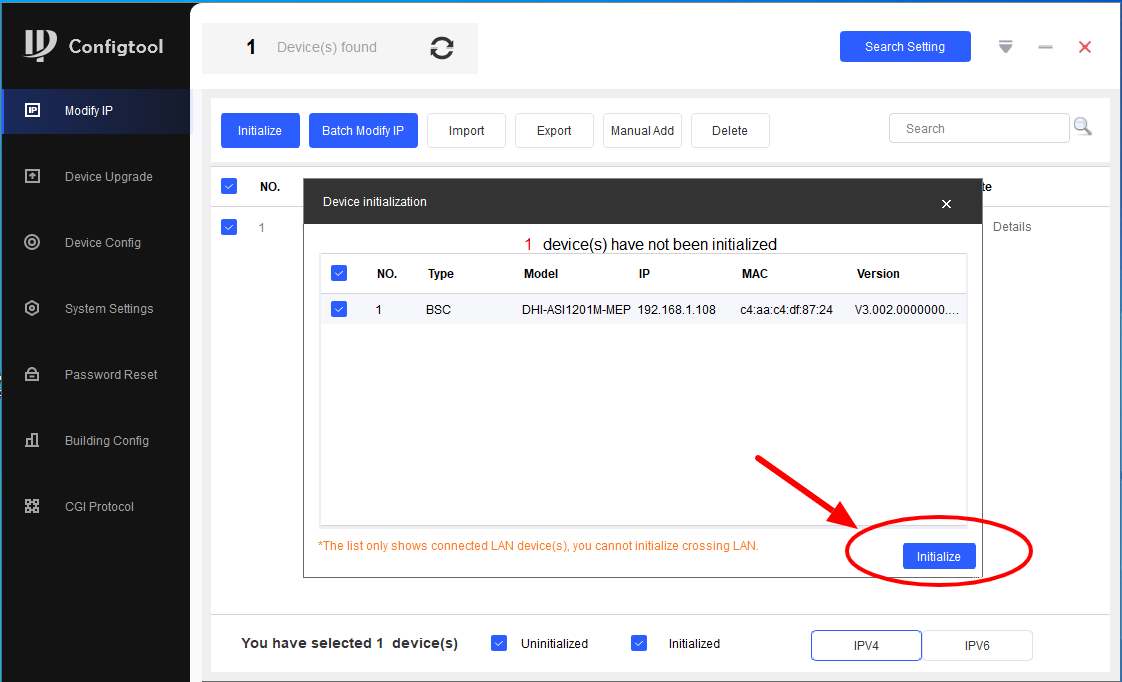
- Click the "Refresh" icon in the upper-left corner; after a moment, a device with the status "Uninitialized" and the IP address 192.168.1.108 will appear in the device list. Select this device and click "Initialize"; in the following dialog, confirm "Initialize".
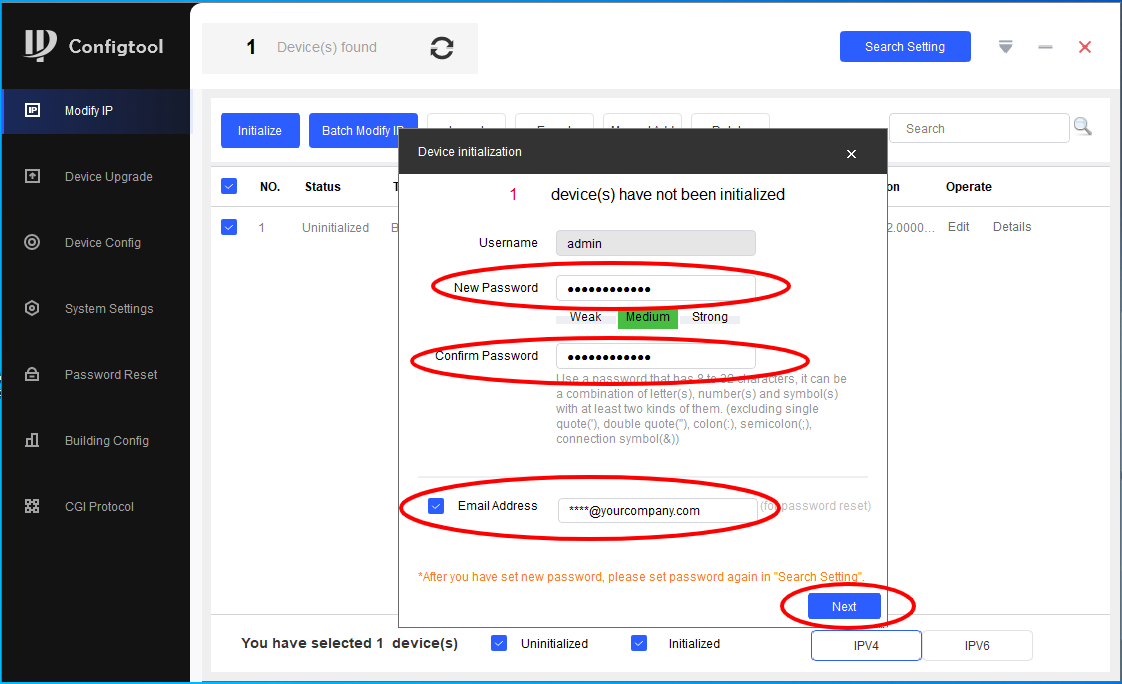
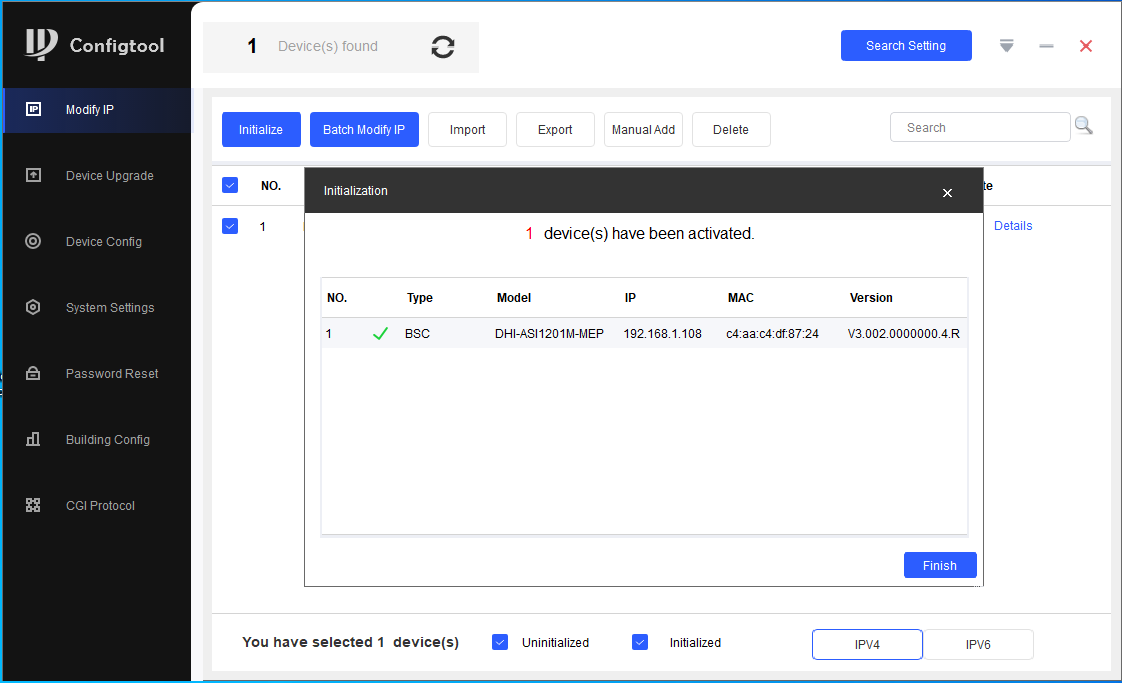
- Enter a password for the "admin" user and set an email address to which a password reset email will be sent if the password is forgotten. This would usually be your general company email address, such as info@yourcompany.com. Confirm by clicking "Next." A dialog confirming successful initialization will appear.
- On your PC, open a web browser, such as Edge, and do the following:
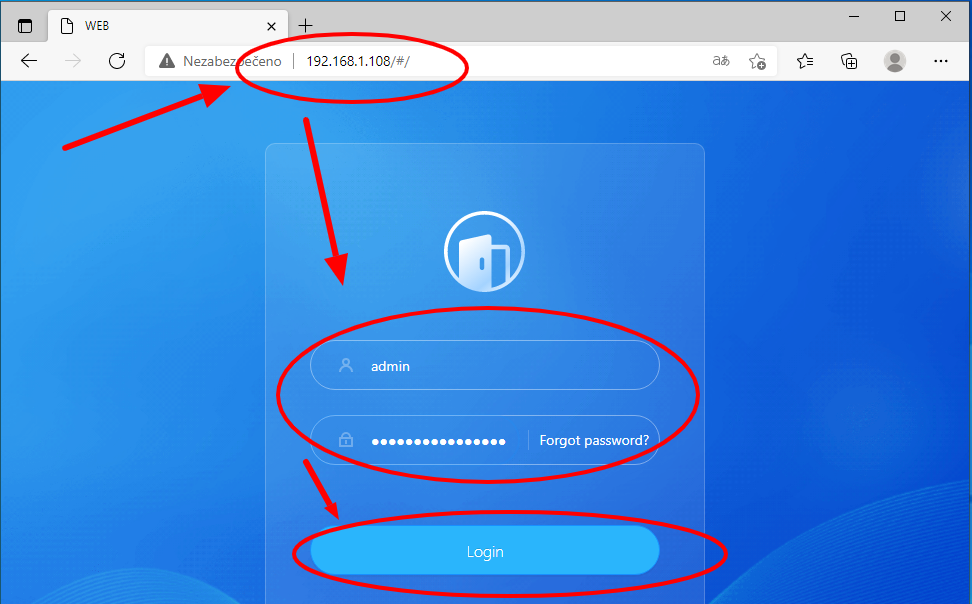
- Enter "http://192.168.1.108" in the address bar and press Enter.
- If any initial setup steps appear, click "Next."
- A login dialog will appear; enter "admin" in the login field and the password you set in the previous step in the password field. Click "Login." The device's configuration interface will appear.
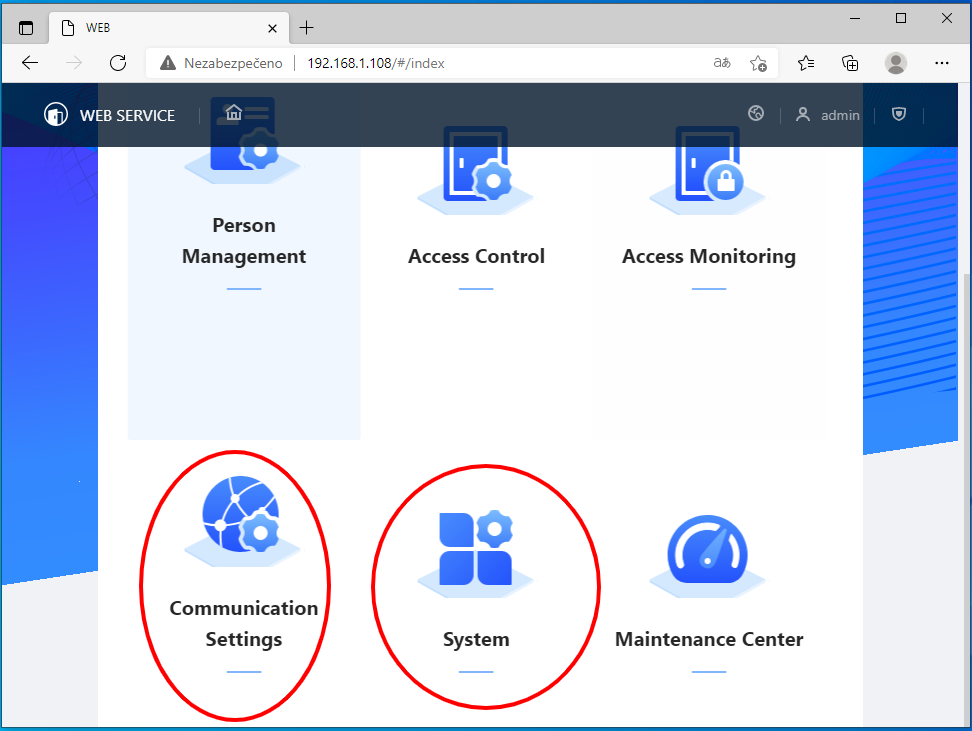
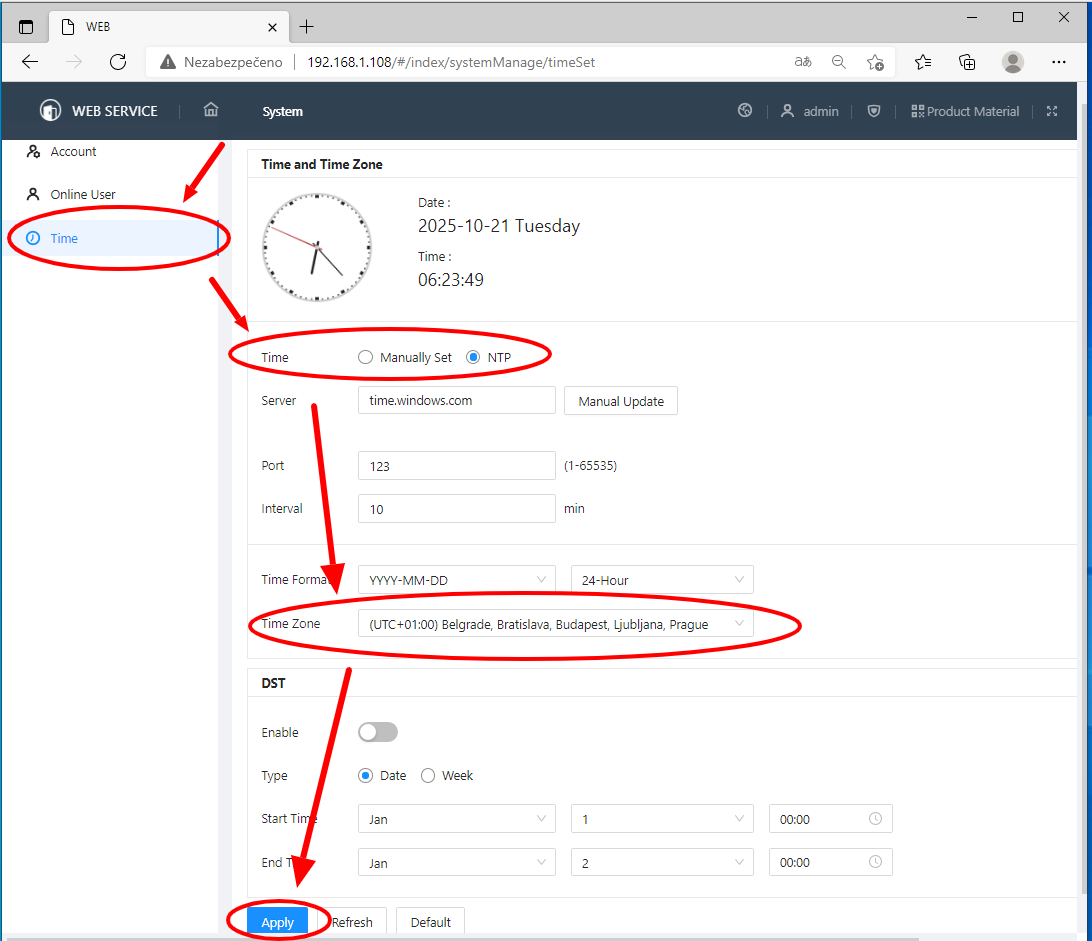
- In section System -> Time, make sure the date, time, and especially the time zone are set correctly. We recommend setting up time synchronization via NTP. Don’t forget to save your changes by clicking "Apply".
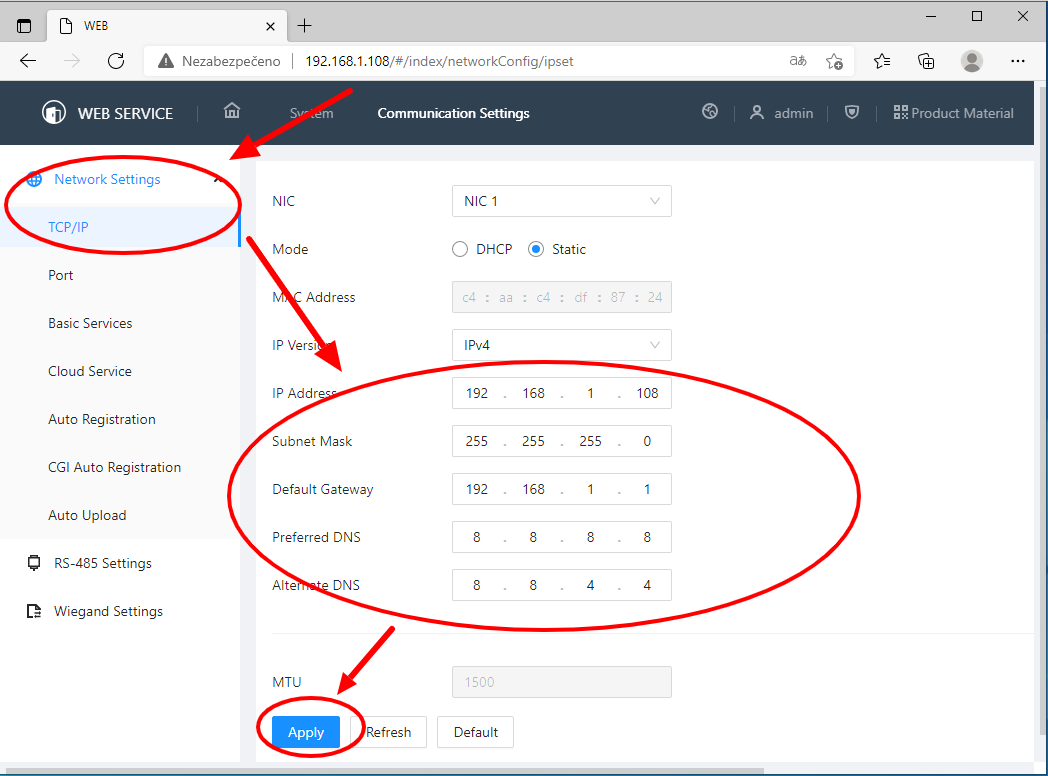
- In the section Communication Settings -> Network settings -> TCP/IP, set the desired IP address of the device. We recommend that you also enter the correct Gateway and DNS settings to ensure that automatic time synchronization works. Don't forget to save your changes by clicking "Apply".
- If you changed the device’s IP address in the step above, your web browser will no longer be able to connect to the device (until you change your PC’s IP address to one within the new IP range of that device).
|
|
|
|
|
|
|
|
|
|
|
|
Pairing the Dahua DA2 Unlocker
You have the ProxyAgent application installed and running. The DA2 is connected to a power source, and the blue light above the keyboard on the DA2 is lit. The DA2 is also connected to the LAN network, to which the PC with ProxyAgent running is connected.
In the Giriton web application
- In the agenda Paired Devices, click + Device with a driver and add a new Dahua device.
-
In window with connection details, select the Dahua ASI1201M-MEP as the device type.
Next, select the Proxy Agent (running on the same LAN as DA2).
Then enter the DA2 URL address on the internal network (e.g., https://192.168.1.108).
Enter the login and password for connecting to DA2 (usually "admin" for the login and the password set during DA2 initialization).
- If everything is in order, the new DA2 Unlocker will be added to the paired devices.
-
You can then specify the function for the newly paired DA2 in the Paired Devices section on the tab 2 Settings:
- Enter a specific attendance activity when the chip is tapped against the DA2 (can be left blank)
- Select the record type: start/end of activity/alternation (e.g., first tap is entry, second tap is leaving)
- Project for the activity being entered
- Which zone the DA2 is intended for—more on access zone settings here
- Which departments or tags the DA2 is intended for—more on departments and tags settings here
Chip settings
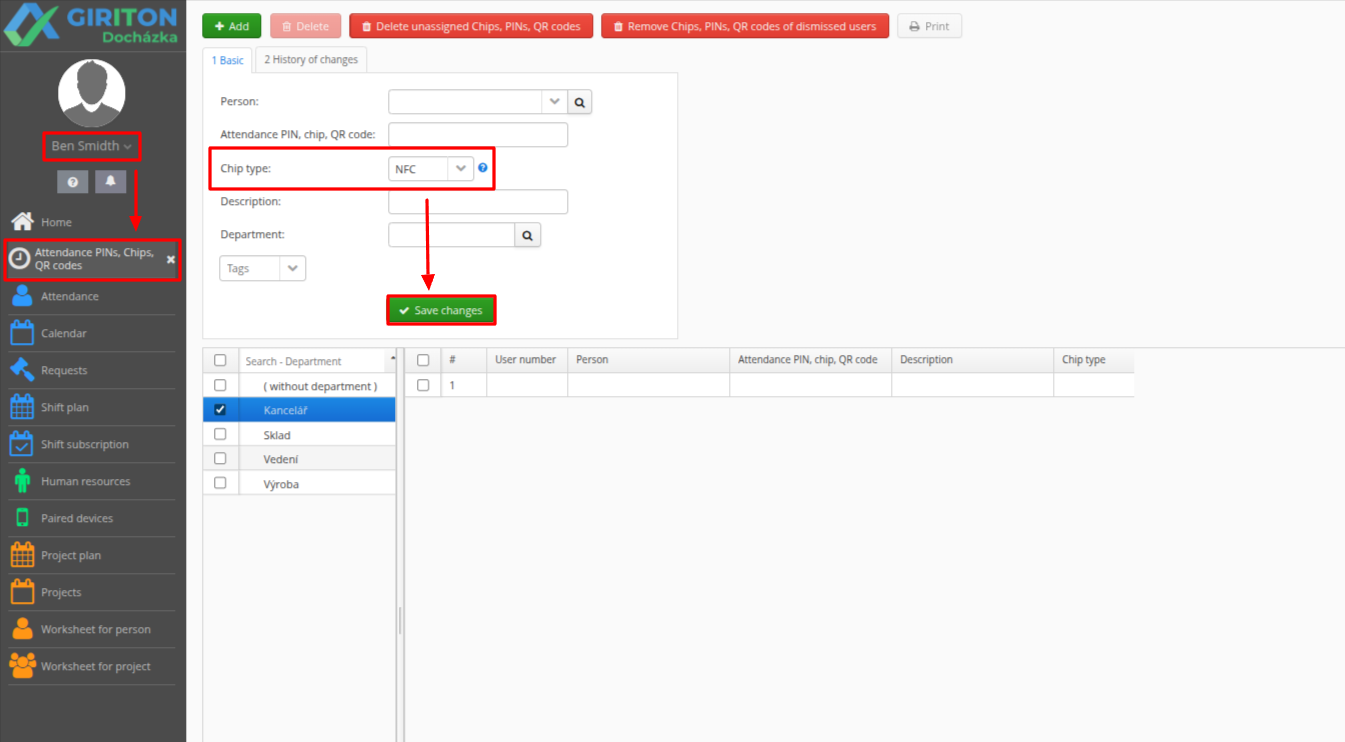
If you use 13.56 MHz NFC chips on a secondary reader, it is necessary to set the following in your account's web application: User menu - Attendance - Attendance PINs, chips, QR codes - Chip type: NFC.
Installation of DA2
If DA2 is to unlock an electronic door lock, we recommend low-power direct current locks, such as the BEFO PROFI 11211.
For DC locks, we recommend connecting a snubber diode (such as the 1N5399) or an MOV varistor, which will extend the relay’s lifespan and protect the DA2 Unlocker from electrical interference that could otherwise cause the device to restart when the lock is released. We recommend protecting alternating current locks with an MOV varistor, diodes cannot be used. Connect the diode or varistor in parallel directly to the electrical lock’s contacts.
Technical specifications of DA2
Chip types: EM4100, EM410X, and MIFARE
Power supply, power consumption: 12V DC max. 18W, PoE
Operating temperature and humidity: -30°C to +55°C, 10% to 90%
Protection rating: IP65, IK08
Door relay: COM-NC-NO type
DA2 used to unlock exterior doors
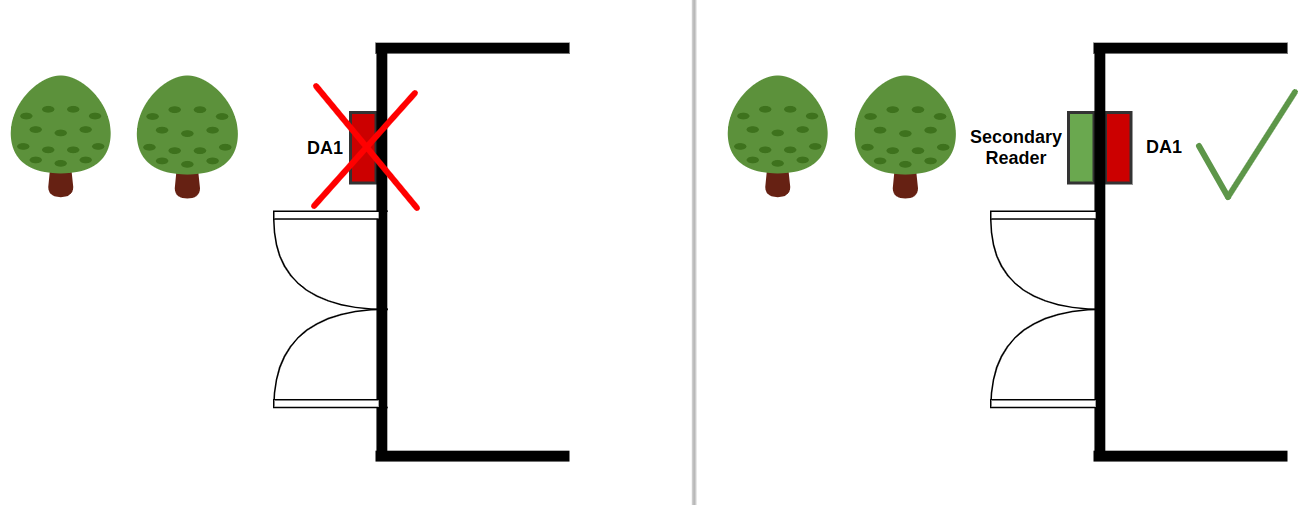
When configuring DA2 to unlock the exterior door to the building, please consider security implications. If a thief gains access to DA2, removes the device from the wall, and connects the correct wires, they can unlock the electric lock connected to this DA2 and potentially gain entry into the building. To unlock exterior doors where a similar risk exists, we recommend installing only a secondary reader on the exterior side of the wall, which will be connected via an RS485 twisted-pair cable to the DA2 located on the interior side of the wall. This eliminates the risk, as removing or manipulating with the secondary reader will not unlock the electric lock.
Additional settings of DA2
The DA2 device connects to the Giriton system via ProxyAgent, and all routine management takes place directly in the GIRITON web application. Therefore, by default, you do not need to log into the web interface of the DA2 device itself.
However, if you need to perform specific additional settings in DA2 for individual users, you must log into the DA2 web interface via a web browser. To make management in DA2 possible, you need to reliably identify specific users. The naming setting serves this purpose.
How to enable user name display in DA2
Due to personal data protection regulations (GDPR), users are synced from Giriton to DA2 anonymously by default. Therefore, in the DA2 user list, you only see a generated ID (e.g. c34bd32e-ba58-49ea-ac4f-f4652d7bb999), and it is not possible to tell who the person is.
If you wish to make additional adjustments in DA2 for specific people and need to identify users by their real names or personal numbers, follow these steps:
- In the Giriton web application, go to the Paired devices section.
- Select the specific DA2 device.
- On the 2 Settings tab, locate the Card name field (see image below).
- Change the default value to "Personal number and name" (or choose another format that suits you).
- Save the settings.
Result: In the user list directly within the DA2 web interface, a clear format (e.g., 007 Jan Novak) will start displaying instead of an unrecognizable ID. This allows you to easily make any additional configuration changes for a specific user in DA2.
Troubleshooting DA2
What if the DA2 Unlocker is offline?
You can verify the connection in your account under Paired Devices - the specific DA2 - Card 2 Settings, where you can see at the top of the details whether everything is ONLINE.
If the Proxy Agent is OFFLINE
Data from DA2 is not transferred to the attendance system. This is the only function performed by the Proxy Agent. As soon as the Proxy Agent comes back on, all retrieved data (i.e., chip/card swipes) will be transferred to the attendance system with the original record times. If the DA2 door opener is connected to a door, it unlocks the door regardless of whether the Proxy Agent is online or offline.
If the DA2 Door Unlocker is OFFLINE
It is likely not connected to the internet. Check whether the LAN or PoE cable is working properly, for example, by connecting it to another device. If the DA2 Door Unlocker is connected to a door, it will unlock it regardless of its online/offline status.
Alternatively, there may be a power failure. Check that both the power adapter and the socket are working. If the previous steps did not help, please do not hesitate to contact our technical support.
The DA2 sometimes unlocks for the user and sometimes does not
Ensure that the Antipassback function on the DA2 is disabled (or correctly configured). This feature prevents the device from unlocking again for a user who has already entered (thereby preventing multiple people from entering using the same chip). You can disable the Antipassback feature in the DA2 web interface using the following procedure:
